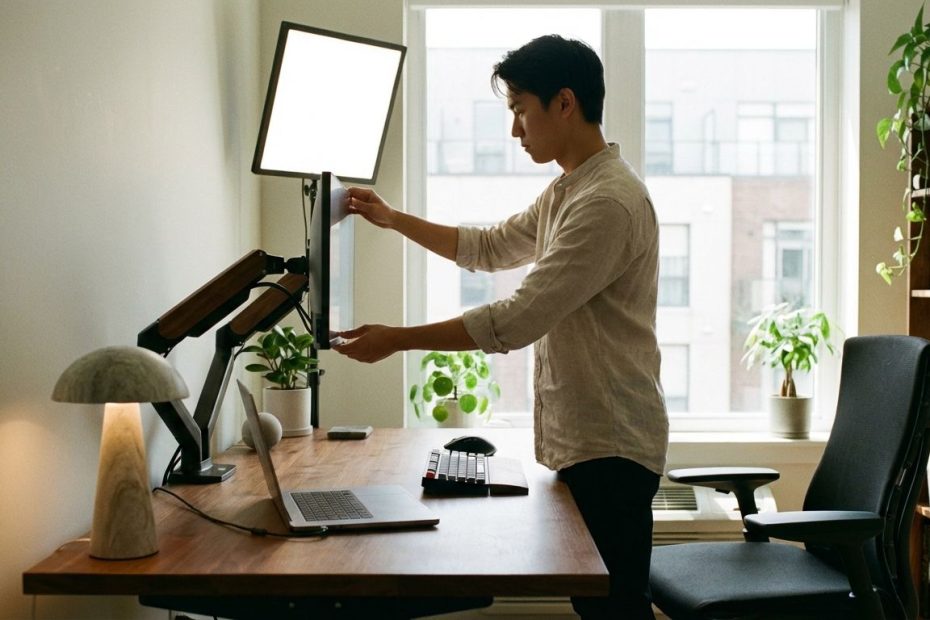
Build a productive home office by locking in ergonomic alignment (screen height, chair fit, neutral wrists), controlling lighting for comfort and calls, and designing the room around focused work, not furniture. When the setup fits your body and workflow, fatigue drops, distractions shrink, and output becomes easier to sustain.
This guide walks through the practical decisions that matter: sizing the desk for real work, dialing in monitor and chair geometry, choosing sit vs. sit-stand based on tasks, fixing harsh or dim lighting, and keeping clutter from returning. Each section answers a real search question with build steps, measurements to target, and common failure points to avoid.
How Do You Set Up A Home Office In A Small Space Without Feeling Cramped?
Start by defining a dedicated work zone that stays “work-only,” even if it sits inside a bedroom or living area. A small space feels cramped when work spills into walking paths, storage, and relaxation areas, then forces constant micro-adjustments. Place the desk so your chair can slide back without hitting a bed, wall, or cabinet, and keep your most-used items within a comfortable reach range. The goal is predictable movement: sit down, work, stand up, exit, with no daily reshuffling.
Desk size decisions drive everything, so treat them like an engineering constraint, not decor. A surface around 24″ x 48″ often hits the sweet spot: enough depth for a monitor at a safe viewing distance, enough width for keyboard and mouse movement, without swallowing the room. If floor area is tight, buy back space vertically with a monitor arm, wall shelf, or slim drawer pedestal that fits under the desk. A cramped desk invites stacking, stacking becomes clutter, clutter becomes friction that breaks focus.
Small spaces also fail when boundaries are vague, so add one physical “edge” that signals where work begins. A low-pile chair mat, a narrow rug under the chair, or a compact divider behind the monitor can keep the work zone visually contained. Keep the background simple if calls are part of the day, since a cleaner visual field reduces distractions for everyone on the call. A minimal footprint office can still feel premium when every item has a job and no item competes for space.
What’s The Best Ergonomic Desk Setup For Working 8+ Hours?
Ergonomics is productivity equipment because discomfort taxes attention. Set the monitor at about arm’s length, with the top of the screen at or slightly below eye level, so the neck stays neutral instead of tipping forward. Then set the chair and keyboard height so elbows stay close to the body at roughly a right angle, with wrists straight while typing and mousing. Poor ergonomics rarely fails all at once; it fails through small compromises that add up over long blocks of work.
Sequence matters when dialing a workstation. Set chair height first so feet are supported and thighs are stable, then set keyboard and mouse height so forearms are close to level, then set monitor height last. If feet do not sit flat on the floor, add a footrest or stable platform rather than lowering the chair until elbows rise and shoulders tense. When shoulders creep upward during typing, the desk is too high or the chair is too low for that desk.
Laptop-only setups are the fastest way to create neck strain, since the screen drops too low. Elevate the laptop so the display sits at proper height, then run an external keyboard and mouse to keep input devices at elbow height. This single change often does more for daily comfort than an expensive chair upgrade. If a second monitor is used, keep the primary monitor directly in front, and place the secondary slightly off to the side, matched in height, to reduce repeated neck rotation.
Standing Desk Or Sitting Desk—What Should You Choose, And What Height Should It Be?
Choose the desk type that lets you maintain neutral posture for long stretches without constant adjustment. A fixed sitting desk works when the chair and desk heights match your body and your tasks stay mostly keyboard-driven. A sit-stand desk earns its cost when the day includes calls, reviews, admin work, or creative work that benefits from changing posture. The win is not standing all day; the win is changing position without breaking alignment.
Height targets stay consistent across desk types: keep the keyboard surface near elbow height, shoulders relaxed, wrists straight. In seated work, that often lands in the low-to-mid 20-inch range for the keyboard surface depending on body size and chair height; in standing work, it often lands in the mid-30s to mid-40s. Pick an adjustable desk with a range that covers both seated and standing for the people who will use it, with enough stability so typing does not cause monitor wobble. Stability becomes a productivity feature when fine motor control matters for long writing or design sessions.
Standing also changes the floor equation. Use supportive footwear and consider an anti-fatigue mat if standing sessions extend beyond quick calls. Keep the monitor at the same relative position as sitting: arm’s length away, top of screen near eye level, centered to reduce head tilt. If wrists bend upward while standing, the desk is too high or the keyboard is too thick; correct it immediately rather than adapting and carrying that strain into every task.
How Do You Fix Bad Home Office Lighting For Video Calls?
Fix video call lighting by controlling direction, consistency, and color temperature. Place your primary light in front of you and near camera height so your face is evenly lit, then reduce harsh contrast from windows and overhead fixtures. When the light source sits behind you, the camera darkens your face and boosts noise, which makes the image look low quality even with a good webcam. When the source sits high above you, shadows land under the eyes and the background may look brighter than you.
Window light is powerful and free, yet it changes all day. If a window sits beside the desk, diffuse it with a sheer curtain or blinds to soften glare and reduce exposure swings. If the room runs dark, add a dimmable key light with adjustable color temperature so the light matches the room and the camera stops hunting. Adjustable white balance matters since warm indoor lamps and cool daylight fight each other, and the camera often fails to reconcile them smoothly.
Keep lighting comfortable for long sessions, not just camera-ready for five minutes. Use layered lighting: an ambient room light for general comfort and a task/key light near the camera for calls. Avoid pointing a bright light straight into your eyes; aim for soft, even illumination that still adds catchlights and clarity. If ring lights feel harsh, bouncing light off a wall or using a diffuser often delivers a cleaner look without glare.
What’s The Best Home Office Layout To Reduce Distractions And Increase Focus?
Layout is focus engineering. Put your primary work surface where the visual field is controlled, ideally facing a simple wall or calm backdrop, and keep high-traffic household movement behind you rather than in front of you. When the desk faces a doorway or busy hallway, attention leaks out of the work. A stable sightline supports long focus blocks since fewer visual events compete for your attention.
Design the desk around reach zones. Keep keyboard, mouse, primary monitor, and the few tools touched every hour within easy reach, and push everything else out of the prime zone. When the phone is used often, keep it close enough to answer without twisting or extending the arm. Reaching, twisting, and repeated searching for items breaks posture and breaks cognitive flow, which quietly adds minutes of inefficiency to every hour.
Calls require their own layout decisions, since audio, lighting, and background become part of the job. Orient the desk so the camera frames a clean background and the key light sits in front, not overhead or behind. If the space is shared, set a visible “meeting mode” signal that reduces interruptions, then keep it consistent so others can respect it. A reliable call setup prevents last-minute scrambling, and that stability improves punctuality and professionalism without adding mental overhead.
How Do You Manage Cables And Clutter So Your Desk Stays Clean?
Clutter is not a cleaning issue; it is a system design issue. Start by assigning every recurring item a permanent home: chargers, notebooks, headset, external drive, pens, and adapters. If an item lands on the desk daily without a home, it will multiply and spread. A clean desk stays clean when returning items takes seconds and requires no decisions.
Handle cables with the same seriousness as ergonomics, since snagged cables pull monitors, knock gear, and turn simple adjustments into friction. Mount a power strip under the desk, use an under-desk tray or raceway to route bundles, then run a single main cable to the wall outlet. Use Velcro ties for serviceability, label ends if multiple similar cables exist, and keep slack controlled so it does not loop under your feet. A clean cable path also improves safety and makes cleaning faster.
Reduce cable count through consolidation. A dock or hub can collapse multiple connections into one, which makes laptop docking and undocking predictable. If the setup includes printers, scanners, or rarely used devices, store them away from the primary desk so they do not consume surface area. A good rule is simple: the desktop supports work in progress and daily tools, everything else lives off-desk.
What Are The Must-Buy Home Office Upgrades First If You’re On A Budget?
Spend budget where it buys sustained output: comfort, visibility, and reliable calls. Start with the chair and the ability to sit with feet supported, hips stable, and shoulders relaxed. A cheap chair can work if it fits, yet many do not support long sessions, and pain drives breaks that do not restore focus. If a chair upgrade is not possible immediately, a footrest and lumbar support can stabilize posture until a better chair becomes available.
Upgrade monitor height and input devices next. Raising the screen to the right height and adding an external keyboard and mouse often produces an immediate reduction in neck and shoulder tension, especially for laptop users. A simple riser, monitor arm, or stable stack that keeps the screen at proper height can be enough at the start. Prioritize neutral wrists and a comfortable mousing area since wrist extension and cramped mouse movement degrade comfort fast.
Calls become the third budget priority for many roles. A basic key light that is dimmable and color-adjustable often improves perceived quality more than a webcam upgrade, and it reduces eye strain in dark rooms. If audio matters, prioritize a reliable microphone or headset that prevents fatigue during long meeting days. After these, invest in convenience upgrades like cable trays, docking, and storage, since those keep the system stable as gear grows.
Home Office Setup Basics
- Neutral posture
- Proper monitor height
- Front-facing lighting
- Clear desk
- Defined work zone
Turn Your Workspace Into A Daily Performance Advantage
A self-made home office wins when it supports long focus blocks without discomfort, distraction, or setup drift. Lock in ergonomics first, then tighten lighting and layout so calls and deep work happen without constant adjustments. Keep the desk clear through assigned storage and disciplined cable routing, and the space will stay stable as work changes. Budget upgrades should reinforce posture, visibility, and meeting quality before adding accessories. Build it once with intent, then maintain it with small weekly resets that protect productivity.
References
- Working from Home (WFH) Ergonomics Equipment Guidelines | Colorado State University
- Computer Workstations Purchasing Guide | Occupational Safety and Health Administration (OSHA)
- Office Ergonomic Guidance | Office of Congressional Workplace Rights (OCWR)
- Ergonomics | Bates College Environmental Health & Safety
- Office Ergonomics | University of Virginia Environmental Health & Safety
- Lighting for Video Calls (Community Discussion)
- Struggling With Home Office Lighting for Video Calls (Community Discussion)
- WFH Setup Struggles (Community Discussion)
- Help Building Home Office Setup (Community Discussion)
- Work Light Feature (Product Coverage)

Glen Leibowitz is a CFO and financial executive with 20+ years in capital markets and fintech. Currently CFO at Bitcoin Depot, he previously held roles at PwC and Apollo Global Management and served as CFO of Acreage Holdings. He specializes in IPO readiness, SOX compliance, and finance transformations. A CPA, he holds a B.A. in Accounting from Queens College (NY).