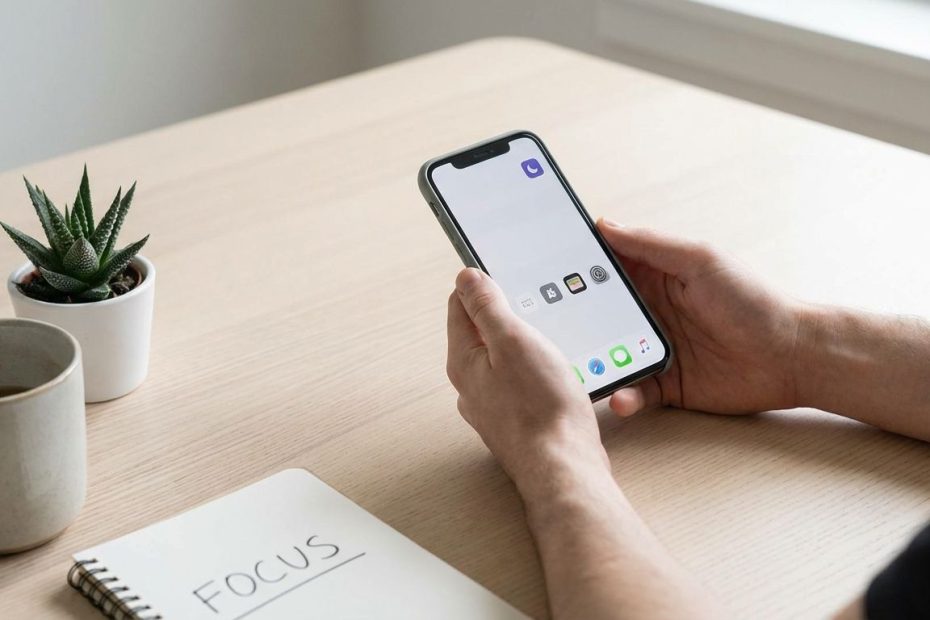
Decluttering your tech for better focus comes down to one move: reduce interruption points (notifications, badges, inbox noise) and simplify what you see when you unlock a screen. When the default screen stops competing for attention, focus becomes the normal state instead of a daily fight.
This guide gives you a phone-to-desktop system you can implement in stages, without breaking anything important. You’ll get practical decision rules for apps, a notification strategy that protects urgent messages, email cleanup tactics that take minutes, and realistic ways to measure progress beyond raw screen-time numbers.
How Do You Declutter Your Phone Without Deleting Something You’ll Need Later?
Start by separating installed from reachable. A digital minimalist phone does not require a tiny app count, it requires a tight “front door.” Keep critical apps installed (banking, travel, authentication, work tools), then remove visual access to everything that invites checking, browsing, or collecting.
A reliable tactic is a two-step removal flow: move questionable apps off the home screen into a single “Parking Lot” folder (or into the App Library-only state), then uninstall later based on actual use. This protects you from the common fear of deleting something “just in case,” while still lowering daily noise. When an app is truly needed, reinstalling is quick, and the friction is useful because it forces intent.
For large app libraries, avoid marathon cleanups. Implement a small, repeatable audit: one home-screen page, one folder, or one category per day. This keeps decision quality high and prevents the rebound behavior where everything gets reinstalled out of frustration. A phone with hundreds of apps usually fails because the home screen acts like a billboard, not because the storage is full.
Use decision rules that prevent overthinking. If an app meets any of these, it stays installed but hidden: essential finances, identity, medical, travel, security, employer-mandated tools. If an app fails these tests, it moves to Parking Lot: opened in the last 30 days, supports a current project, replaces a physical tool you genuinely use. If it fails again after a week, uninstall it and move on.
To reduce second-guessing, keep a short “reinstall list” in Notes: apps removed that might return seasonally (tax, airline, ticketing, school, conference). This keeps your mind from treating uninstalling as permanent. It also gives you a clean way to reintroduce apps intentionally, instead of letting the app store become a dopamine scavenger hunt.
What Should You Remove First If You Want Better Focus, Apps, Notifications, Or Your Home Screen?
Remove interruptions before removing apps. Notifications train rapid attention switching, even when you do not open anything. When the phone buzzes or lights up, part of your attention moves to “what was that,” and the cost remains even if you ignore it. Fixing notifications stabilizes focus faster than deleting ten apps.
After interruptions, fix default visuals. The home screen is the trigger surface: icons, badges, widgets, and placement decide what you think about when you pick up the device. A minimalist home screen is not an aesthetic, it is a behavioral control. Keep only tools you want to use with intent: calendar, notes, camera, maps, authenticator, music, reading, messaging.
Then address access paths. If social, shopping, video, or news apps are one tap away, they will win during low-energy moments. Keep them installed if needed, but bury them: App Library only, a far-right screen, or inside a “Leisure” folder that requires deliberate navigation. This creates a pause that lets you decide rather than react.
Uninstalling comes last because it is the most emotionally loaded. Once your notifications and home screen are cleaned, uninstall decisions become obvious. Many apps become irrelevant when they no longer shout for attention. Your goal is not to delete aggressively, it is to make focus the default outcome of unlocking a device.
How Many Apps Is Too Many For Digital Minimalism?
No single number defines digital minimalism, because app counts ignore what matters: frequency of checking, interruption rate, and whether your setup supports your priorities. A device can have 30 apps and still wreck focus if three of them interrupt all day. A device can have 150 apps and feel calm if only ten are reachable, notifications are controlled, and the rest stay out of sight.
Use two operational metrics that correlate with focus. Metric one: how many apps are on your first home screen. Keep it small enough that you recognize every icon as a tool, not a temptation. Metric two: how many apps can notify you with sound, lock-screen banners, or badges. That list should be shorter than you think, and it should stay stable.
To decide what “too many” means for you, review apps through purpose categories. Category A: daily drivers (work, health, scheduling, communication). Category B: weekly utilities (banking, travel planning, smart home, specialized shopping). Category C: rare but critical (2FA backups, insurance, parking, device utilities). Category D: optional entertainment. A minimal setup keeps A visible, keeps B reachable but hidden, keeps C installed but buried, and makes D intentional with limited entry points.
When the phone contains 300–600 apps, the win is not reaching a perfect number. The win is regaining control of what you see, what can interrupt you, and what you can access without wandering. You earn focus when the device stops offering a thousand micro-decisions per day.
How Can You Stop Getting Distracted By Notifications Without Missing Important Messages?
Stop treating notifications as a default feature. Treat them as a privilege an app earns. Most apps do not need the right to interrupt you in real time, even if they ask aggressively. Configure notifications so only time-sensitive communication and true operational alerts reach you, and route everything else to scheduled review windows.
On iPhone, use Focus to control who and what can notify you during specific blocks of time. Focus supports allowing selected people and apps, scheduling by time or location, and linking a Focus to a specific home screen page so the phone shows fewer triggers while Focus is active. Apple also supports options that change how silenced notifications appear, and additional controls like Focus filters that limit what content apps show during a Focus. These settings let you protect your attention while still letting priority messages through.
On Windows 11, Focus reduces distractions by blocking notifications during a focus session, turning on Do not disturb, and temporarily hiding taskbar badges and flashing indicators. This matters because desktop distraction often starts with a tiny visual cue, not a major interruption. When the taskbar stops demanding attention, deep work becomes less fragile.
Operationally, set up three notification tiers. Tier 1: calls, direct messages from priority people, calendar alerts, security alerts. Tier 2: delivery, travel updates, two-factor prompts when actively logging in. Tier 3: everything else. Tier 3 does not deserve lock-screen space, sound, or badges. Move Tier 3 into an inbox model: you open it on your schedule.
Then set a review cadence that matches your day. Two short check windows often outperform constant grazing: late morning and late afternoon for workdays, one mid-day check for weekends. This reduces the “always on” loop that makes focus impossible. Your goal is predictable access, not constant access.
How Do You Clean Up Email Subscriptions Fast, Gmail Especially?
Email clutter destroys focus because it creates an endless sense of unfinished work. Subscription volume also trains reactive behavior: open, scan, delete, repeat. The fix is not more willpower, it is a short burst of unsubscribe work paired with better routing so your inbox becomes a workspace again.
Gmail’s “Manage subscriptions” view is designed for speed. It shows active subscription senders organized by frequency, and it supports one-click unsubscribe actions so you can remove the highest-volume senders quickly. Gmail can also send the unsubscribe request on your behalf, which saves time and reduces friction when you are cleaning up at scale. This is the fastest path to a noticeable reduction in inbox noise.
Execute the cleanup in two passes. Pass one is volume-only: unsubscribe from the top 10–20 senders by frequency, even if some content is mildly interesting. Pass two is value-based: keep only subscriptions that directly support current priorities, and move the rest out of the inbox using labels and filters. The point is to stop letting promotional mail compete with real communication.
Then protect the inbox going forward. Create a rule: any new subscription must land in a “Read Later” label by default, not the primary inbox. When a subscription earns attention, pull it into a deliberate reading block. This turns email into a tool instead of an ambient feed.
What’s A Realistic Daily Screen-Time Target, And What Do Most Americans Actually Spend?
A realistic target is one you can hold steady without rebound behavior. Screen time is a blunt metric because it mixes work, navigation, communication, entertainment, and passive scrolling into one number. What matters for focus is not only minutes on-screen, it is how fragmented those minutes are, and how often attention gets reset.
Reviews.org reported that Americans average 12 hours and 36 minutes of screen time per day across all devices, based on its 2025 dataset. It also breaks time down by device, with smartphones and connected TVs near the top, each around a little over three hours per day on average. This data highlights a reality digital minimalists often miss: phone optimization helps, but focus also gets lost to multi-device routines.
Set targets that reflect your actual constraints. A strong starting goal is reducing unplanned checks and increasing uninterrupted work blocks. Track how many times the phone gets picked up during work sessions, and how many sessions reach 25–50 minutes without switching contexts. When those numbers improve, productivity rises even if total screen time stays flat.
Use a two-part goal. Part one is reduction: cut the worst distraction category by a measurable amount, like 20–30% over four weeks. Part two is replacement: schedule high-value screen use (learning, planning, creating) so the freed time does not get absorbed by a different feed. This keeps the plan stable and prevents the “deleted one app, replaced it with another” pattern.
How Do You Build A Digital Minimalism Setup That Stays Clean For Months?
Short cleanups fail when there is no maintenance loop. A sustainable setup uses a few fixed rituals that keep entropy from returning. Digital clutter grows automatically through updates, new apps, new subscriptions, and new default settings after OS changes. Maintenance needs to be scheduled, not left to motivation.
Implement a weekly 10-minute reset. Remove any new apps from the home screen unless they are daily drivers. Clear notification permissions for any app that requested them during the week. Archive or label newsletters that slipped into the inbox. This routine is small enough to execute consistently, and consistency is what keeps the system quiet.
Implement a monthly deeper audit. Review your most-used apps list and identify the top two that create checking loops. Reduce access by moving them out of sight, turning off badges, and restricting notifications. Review your email subscription list and unsubscribe from any sender that no longer supports current goals. This keeps “digital weight” from accumulating silently.
Lock in focus defaults across devices. Use iPhone Focus schedules for work blocks and evening wind-down. Use Windows Focus sessions for deep work and study periods. Align your calendar with these focus blocks so your tools support the same operating rhythm. When focus settings match your day, you spend less energy resisting distractions.
Keep a strict rule for home screen real estate: if an app is not part of today’s operating plan, it does not belong on page one. This rule prevents the common drift where the home screen becomes a dumping ground. Minimalism holds when the phone stays purpose-built.
Declutter Your Phone Without Losing Anything Important
- Silence noncritical notifications
- Keep a tight first home screen
- Move “maybe” apps to a Parking Lot folder for 7 days
- Uninstall what you do not open
Make Focus Your Default Setting
Better focus comes from reducing what can interrupt you, reducing what can tempt you, and building a repeatable maintenance loop that keeps clutter from returning. Start with notifications, then fix the home screen, then clean up email subscriptions, then measure progress using uninterrupted work blocks and fewer unplanned checks. Use iPhone Focus and Windows Focus sessions to automate quiet time instead of relying on discipline. Once your devices stop competing for attention, you spend more time executing priorities and less time managing noise.
References
- Reddit: “I have 600 apps my phone. I feel overwhelmed trying to declutter them.”
- Apple Support: Set up a Focus on iPhone
- Reddit: “Is 34 apps too much if you want to be a digital minimalist”
- Microsoft Support: Focus, Stay on Task Without Distractions in Windows
- Google Blog: Declutter your inbox with Gmail’s newest feature
- Reviews.org: Screen Time and Internet Usage Statistics 2025
- Awisee: Average Screen Time Statistics in 2025.

Glen Leibowitz is a CFO and financial executive with 20+ years in capital markets and fintech. Currently CFO at Bitcoin Depot, he previously held roles at PwC and Apollo Global Management and served as CFO of Acreage Holdings. He specializes in IPO readiness, SOX compliance, and finance transformations. A CPA, he holds a B.A. in Accounting from Queens College (NY).